PCS Not Starting/Opening
This error is usually caused by a corrupted configuration file created by the program upon startup. To solve the issue, you’ll need to delete the folders where the file is stored so that the program has a chance to “refresh” itself the next time it opens.
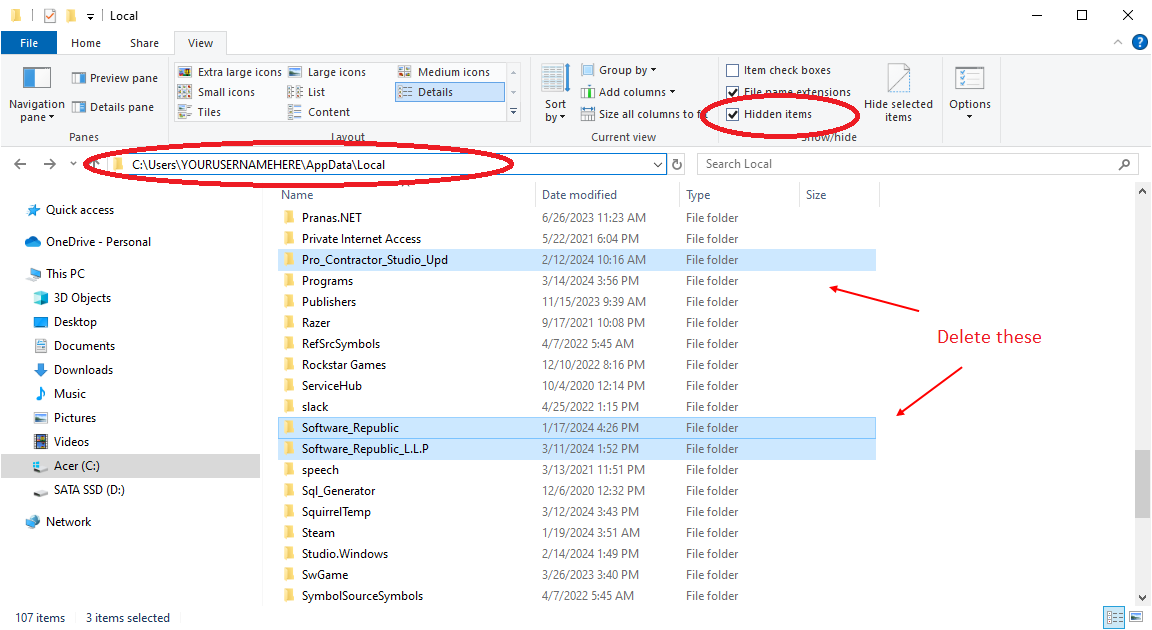
Make sure that Hidden Items is turned on in Windows Explorer. You can do this by
- Opening Windows File Explorer
- Select View --> Show --> Hidden Items
To remove the folders:
- Using Windows File Explorer, navigate to C:\Users\USERNAME\AppData\Local
**Your username will be a shortened version of the name you use when logging on to your computer.
- Select all folders that contain the words Pro_Contractor_Studio and/or Software_Republic. You can select multiple folders by holding the “Control” key on the keyboard and clicking on the folders with the left mouse button.
- Delete the folders by pressing the “Delete” key on the keyboard.
- Open Pro Contractor Studio again, and re-insert your subscription information. Press the “Validate Subscription” button. You can always find your subscription information inside your Pro Contractor Studio account.
Back to All Topics