When trying to print in XPS Mode, I receive an Unhandled exception has occurred in your application. File not found.
Pro Contractor Studio uses the Microsoft XPS Viewer (xpsRchVw.exe) command to print XPS files. The System.IO.FileNotFoundException: File not found error message usually occurs if the XPS Viewer is not installed on the computer or is not set as the default program for opening XPS documents.
To install the Microsoft XPS Viewer on your computer, download and install the Microsoft XML Paper Specification Essentials Pack, Version 1.2 from the Microsoft website at the following location - http://www.microsoft.com/en-us/download/details.aspx?id=11816.
During the installation you may receive a prompt asking if you would like to "override the registration and make XPS Viewer EP your default viewer for XPS Documents." Refer to the image below.
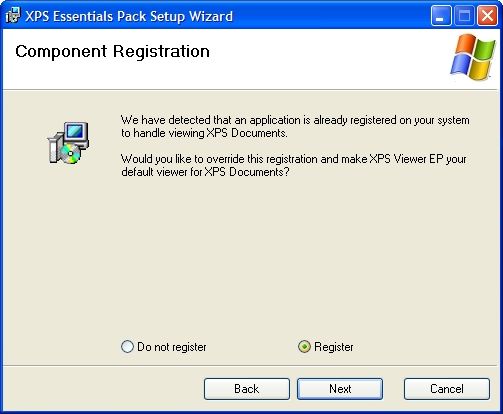 Click on the Register button to make the XPS Viewer the default program.
Once the XPS Viewer is installed, restart Pro Contractor Studio. Check to make sure the version number is greater than or equal to 3.5.0.5.
Try the print command again and you should be able to print the drawing file.
Click on the Register button to make the XPS Viewer the default program.
Once the XPS Viewer is installed, restart Pro Contractor Studio. Check to make sure the version number is greater than or equal to 3.5.0.5.
Try the print command again and you should be able to print the drawing file.
Back to All Topics