Selecting Objects
Selecting Objects
Selecting Objects
|
Toolbar Icon:
|

|
There are several methods of selecting entities or objects on the drawing screen. When the program is in the selection mode, the cursor changes to an arrow shape  .
.
To select a single entity:
-
Click on an entity one time with the left mouse button. The selection handle  used to move the entity will appear at this location. The entity will change color and its grip locations will be highlighted with small square
  boxes.
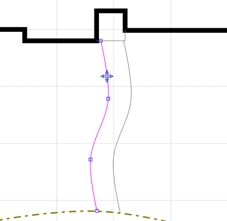
Single entity selected with selection handle and grip boxes.
To select multiple entities:
-
Click on an entity one time with the left mouse button. The selection handle used to move the entity will appear at this location. The entity will change color and its grip locations will be highlighted with small square boxes.
-
Press and hold down the Shift key. Click on other entities to add them to the selection set.
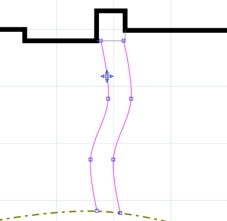
Multiple entities selected with original selection handle and all grip boxes.
To select entities by dragging a window:
Press and hold down the left mouse button.
-
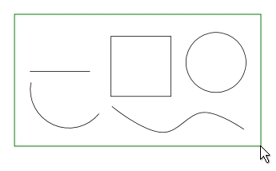
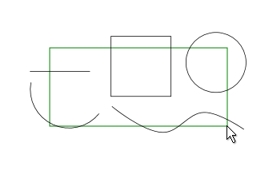
Drag a window around the entities to select. The entities must fit 100% inside of the window to be selected. The only exception to this rule is sprinkler arc patterns. You are not required to window around the sprinkler nozzle symbol and the entire arc pattern to select a sprinkler.
|
|
|
|
|
Valid selection window - everything is 100% inside of the selection window.
|
|
Invalid selection window - no entities fit 100% inside of the selection window.
|
-
Once the window is surrounding the entities, release the left mouse button. The entities will change color. The selection handle used to move the entities will appear at the center most location of the selection set. The grip locations will be highlighted with small square boxes.
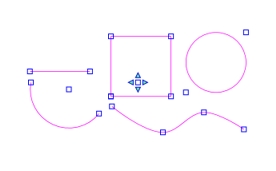
Selected entities with centered selection handle and all grip boxes.
Note:
-
Sprinkler symbols and their associated arc patterns are the only objects that do not have to fit 100% inside of a selection window to be added to a selection set. Only the nozzle symbol itself must fit within the window. The arc pattern associated with the symbol does not have to be included inside of the window.
-
You cannot select an entity or object by clicking on the fill pattern.
Back to All Topics