Save
Save
Save
Menu: |
File
 Save Save |
Shortcut
Keys: |
Ctrl + S |
Toolbar Icon: |

|
The Save command allows you
to save a drawing file. Drawing file names end with a .pcs
extension. You should save your drawings on a regular basis. Saving
your drawings will protect you from losing work in the event of a power
failure or other unexpected event.
To save a drawing file:
If
you have previously given the drawing a name and saved the file to
your computer, any changes made to the drawing are automatically saved
under the existing file name. If you have never saved the drawing,
the Save As dialog box will
appear.
Click on the drop down arrow to the right of Save in and change to the folder
where the drawing file is to be located on the computer.
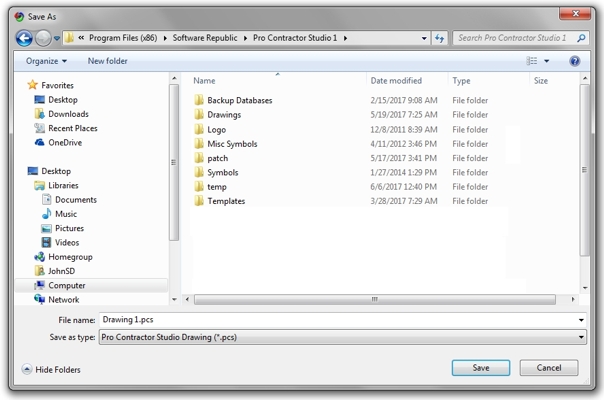
Change to the folder where the drawing is to be saved on the computer.
Enter
the name of the drawing file in the File
name text box. It is not necessary to enter the .pcs extension.
Click on the Save
button.
Note:
The maximum number of characters in a .pcs
file name (including the path) is 256 characters.
If you want to create another copy of your drawing
without affecting the original drawing, you can save it under another
name.
You may print the drawing to an Adobe PDF file if
you have a driver installed on your computer. You may purchase
a driver from Adobe�
or you may find another PDF driver by searching the Internet. Be
sure to adjust the paper orientation and size�
if necessary before printing to the PDF format.
Back to All Topics