Revision Cloud
Revision Cloud
Revision Cloud
Menu: |
Draw
 Revision Cloud Revision Cloud |
Toolbar
Icon: |

|
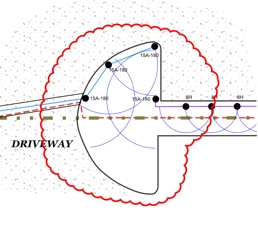
Revision clouds are used to draw attention to sections of a design during
the review stage. The Revision
Cloud command will allow you to draw a revision cloud made up of
three or more points on the design screen. All revision cloud lines
are automatically placed on the Revision
Cloud layer in the Layer Manager.
To draw a revision cloud:
Click one time with the left mouse button to set a
point for the beginning of the revision cloud.
Move the cursor to a new location. Click one
time with the left mouse button to set a second point.
Continue the process by setting additional point locations
as necessary. To make the line appear more as a curved shape,
set additional points closer together when drawing the revision cloud.
Press the Enter
key to end the revision cloud.
Note:
You can press the Esc
key to back up and remove points set for the line.
To adjust the size
of the arcs within the revision cloud line, increase or decrease
the Scale setting for the
Revision Cloud layer assignment
in the Layer Manager.
To change the color
of the revision cloud line, adjust the Color
setting for the Revision Cloud
layer assignment in the Layer Manager.
You can fill the revision cloud line with a solid
color or gradient blend using the Fill command.
Back to All Topics