Quick Select
Quick Select
Quick Select
Menu: |
Edit
 Quick Select Quick Select |
Shortcut
Key: |
Ctrl + Q |
Toolbar Icon: |

|
The Quick
Select command displays
the filtering criteria for creating a selection set. This
makes it easy to select all of the entities with the selected criteria
as a group instead of having to select each entity one at a time.
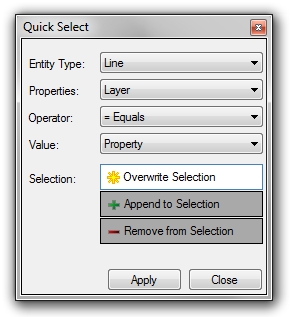
To select or deselect all entities with the
set criteria:
Click on the Entity
Type drop down menu and select the type of entities to include
in the filtering criteria. The list will only include the type
of entities that exist on the drawing screen. For example, Curve
will not appear in the list of entities if there are no curves drawn
on the design screen.
Click on the Properties
drop down menu and select the criteria for the selected entity type.
The selection criteria will vary depending on the selected entity
type. For example, available Properties selections for a line
or curve will include Layer, Color, and Line Style. Available
Properties selections for a Sprinkler will include Sprinkler Manufacturer,
Sprinkler Category, Nozzle, and Nozzle Body.
Click on the Operator
drop down menu to select the desired operator to control the range
of the selection criteria. Depending on the selected entity
type, available operators include Equals =, <> Not Equal, >
Greater than, and < Less than.
Click on the Value
drop down menu or enter a value for the filter selection. For
example, if Line Style is chosen for the Properties selection, the
Value selection will be a drop down menu of different line style selections.
If Length is chosen as the Properties selection, a numeric value
must be entered in the text box.
Click on the desired Selection
button. The following options are available:

|
Overwrite
Selection |
This button will deselect all currently
selected entities and overwrite the selection set with the
desired selection criteria. |

|
Append
to Selection |
This button
will add all entities with the selected criteria to the existing
selection set. |

|
Remove
from Selection |
This button
will remove all entities with the selected criteria from the
current selection set. |
Click on the Apply
button.
Click on the Close
button to exit the dialog box.
Note:
Back to All Topics