Pump Station
Pump Station
Pump Station
|
Menu:
|
Irrigation  Water Source Water Source
|
|
Toolbar Icon:
|

|
The Water Source command will allow you to enter pump station information and place a pump symbol on the drawing screen. You may have more than one water source symbol on the design.
To place a pump station on the design:
-
On the Water Source dialog box, click on the Place New Water Source button. A water source symbol will appear on your mouse cursor. Do not worry if this is not the symbol you want to use to represent the water source. You will have the ability to change the symbol once it appears on the design.
-
Click one time to set the location of the water source symbol on the design screen.
-
Rotate the symbol to the desired angle and click a second time to complete the placement process and return to the Water Source dialog box.
-
Enter a description for the water source in the Description text box.
-
To change the symbol on the drawing that represents the water source, click on the drop down arrow to the right of the Symbol label to view the available symbol choices. Click one time on the symbol to assign to the selected water source.
-
To assign a to the symbol, click on the Color button. Click on the color of your choice or enter the Red, Green, and Blue values in the associated text boxes. Click on the OK button to accept the color assignment.
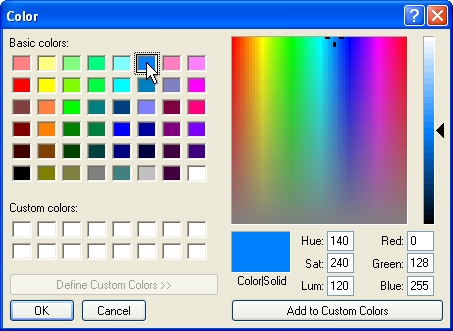
Select a color assignment and click on the OK button.
-
To insert a pump station into the design, select Pump from the Water Source Type drop down menu.
-
In the Elevation text box, enter the elevation at the pump location. During the hydraulic calculations, the software will compare this elevation assignment to the elevation assignment of other system components and determine a gain or loss in design pressure.
-
Modify any of the available characteristics as necessary.
-
Enter the in the Available Working Pressure text box. If Feet is selected as the Units of measurement, enter the pressure in PSI. If Meters is selected as the Units of measurement, enter the pressure in Bars.
-
Enter the Maximum flow of water through the pump in the available text box. If Feet is selected as the Units of measurement, enter the flow in GPM. If Meters is selected as the Units of measurement, enter the flow in L/M.
-
Click on the Insert Water Source Data button to place the pump information on the design screen. Adjust any of the font settings as necessary and click on the Place Text Table button. Set one point on the design screen for the top left corner of the table.
-
Click on the Close button exit the dialog box.
The following characteristics may be modified per pump station:
|
Tied Assembly
|
Assign a tied assembly to the pump by selecting the assembly from the Tied Assembly drop down menu.
|
|
List Price
|
Enter a for the selected pump in the List Price text box. The list price is the retail value assigned to the selected pump.
|
|
Discount Rate
|
Enter a percentage off list price for the selected pump in the Discount Rate text box.
|
|
Labor Rate
|
Enter a direct associated with the installation of the pump in the Labor Rate text box.
|
|
Part Number
|
Enter the of the selected pump in the Part Number text box.
|
Note:
-
You must save your drawing after placing a pump symbol to retain the water source information.
-
To delete a water source, simply erase the symbol from the drawing screen.
Back to All Topics