Polar Angle
Polar Angle
Polar Angle
|
Shortcut Key:
|
P
|
|
Toolbar Icon:
|

|
The Polar Angle command will force the cursor to snap or track along a polar alignment angle that is relative to the starting point based on the angle selection from the drop down menu. This command is often used in conjunction with another drawing command such as the Line command. The command makes drafting a building or house a simple process. You can quickly turn the command on or off while drafting by pressing the Shortcut Key of P.
An phantom dotted line will extend along the polar angle from the originating location. As you move the cursor around the original point location, the cursor will snap to an angle as it reaches the set increments.
To turn on the Polar Angle feature and select a setting:
-
Click on the drop down menu to the right of the Polar Angle icon and click on an angle setting.
-
Enact a command such as the Line command or the Anchor Point command.
-
Set a point on the design screen to begin the selected command.
-
Drag the mouse cursor around the current point location to snap to a polar angle.
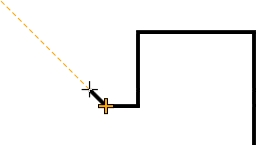
Snapping to an angle of 135� while drafting a house with a bay window.
-
Set a point on the screen and drag the cursor around the new point location to snap to another angle.
Note:
Back to All Topics