Point Relative
Point Relative
Point Relative
|
Shortcut Key:
|
' (Apostrophe)
|
The Point Relative command will allow you to set a point in relationship to the last point set on the design screen or the point of origin which is located in the bottom left corner of the drawing. The position of the new point is given in horizontal (X)and vertical (Y) distances from the specified location. This command is often used in conjunction with another drawing command such as the Line command. The command makes drafting a building or house a simple process.
To make use of the Point Relative command:
-
Enact a command such as the Line command.
-
Press the ' (apostrophe) shortcut key to enact the Point Relative command.
-
Click on the Relative to Anchor checkbox to add or remove the checkmark. If the box has a checkmark, the new point will be positioned relative to the current Anchor Point location. If the box does not have a checkmark, the new point will be positioned in relationship to the point or origin which is the point with X and Y coordinates of 0,0 in the bottom left corner of the design, also know as Point Absolute.
-
Enter the desired horizontal change in the DX text box and press the Enter key. Entering a negative value such as -10 will set the new point 10 units to the left of the current Anchor Point location.
-
Enter the desired vertical change in the DY text box and press the Enter key. Entering a negative value will such as -20 will set the new point 20 units below the current Anchor Point location.
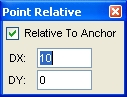
Point Relative setting a new point 10 units to the right of the current location and 0 units up or down.
Note:
-
You can move horizontally on the design by entering a value greater than zero (0) in the DX text box and leaving the DY value set to zero (0).
-
You can move vertically on the design by entering a value greater than zero (0) in the DY text box and leaving the DX value set to zero (0).
-
Entering a positive number for DX will move to the right while a negative number will move to the left.
-
Entering a positive number for DY will move up while a negative number will move down.
-
You can enter a distance as a decimal number or as feet and inches. For example, you can enter 10 feet 3 inches as either 10.25 or as 10' 3".
Back to All Topics