Plant Shadows
Plant Shadows
Plant Shadows
|
Menu:
|
Landscape  Plant Shadows Plant Shadows
|
|
Toolbar Icon:
|

|
The Plant Shadows command will allow you to place shadows on the selected plant symbols. You may select the desired position for the shadows to appear in relation to the symbols, as well as the specified offset or distance the shadows will appear from the symbols. You may place shadows on more than one symbol at a time.
To place plant shadows on the design screen:
-
Select one or more plant symbols on the design screen.
-
To add a shadow to the selected symbol, choose On from the Visible drop down menu. Choose Off to remove a shadow from a symbol.
-
In the Angle text box, enter a value for the desired position of the shadow in relation to the symbol, or click on a directional arrow to select an angle.
-
In the Offset text box, type in the desired number of units to place the shadow in relationship to the associated symbol. An offset will prevent the shadow from being drawn directly on top of the associated symbol.
-
Adjust the opacity of the shadow. Move the Slider Bar  , click on the up and down arrows, or type a value in the text box and press the Enter key to adjust the shadow opacity or transparency.
-
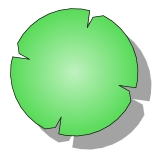
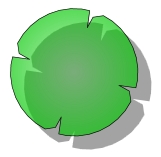
From the Clip Shadow drop down menu, choose Yes to clip the shadow so it does not appear directly below the symbol. Choose No to allow the shadow to appear under the symbol.
|
|
|
|
Clip Shadow set to Yes
|
Clip Shadow set to No
|
-
Click on the Apply to Selected Plants to apply the shadow settings.
Note:
Back to All Topics