Plant Placement
Plant Placement
Plant Placement
|
Menu:
|
Landscape  Plants Plants
|
|
Toolbar Icon:
|

|
The Plant Placement command allows you to place plant symbols on the drawing screen. You may place as many plants on the drawing screen as necessary. The plants are separated by category to help filter the selections. The default category selections are Trees, Palms, Shrubs Under 4 Feet, Shrubs Over 4 Feet, Ground Cover-Vines, and Annuals-Perennials. You can add, delete or rename the category selections.
To begin placing a plants on the design:
-
Select the filtering method from the Filter Type drop down menu.
-
Select a plant and adjust any settings as necessary.
-
Click on the OK button to begin placing the plant symbol on the design screen.
To place a single plant symbol:
-
The symbol representing the plant material will appear on your cursor. The cursor will change to a plus (+) sign. Move the mouse cursor where the plant should be located on the drawing and click one time with the left mouse button.
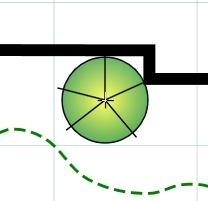
Click one time to set the plant location
-
Rotate the plant symbol to any angle and click a second time to complete the placement process.
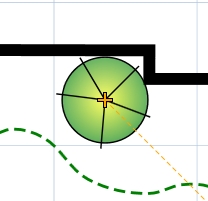
Rotate the plant symbol to any angle
-
Another plant of the same type will appear on the mouse cursor. Continue placing additional plant symbols as necessary.
-
Press the Esc key to end the command and return to the Plant Placement dialog box.
-
Click on the Close button to exit the dialog box.
To place a plant symbol as an area fill:
-
Chose the area selection method from the drop down menu. Draw Manual will allow you to set points to outline the area. From Selection will allow you to select the entities that enclose the area. From Point will allow you to set a point inside of a closed area.
-
Click on the Add button or  icon and follow the prompts in the Status Bar.
The area will be filled with the color, gradient blend, or hatching pattern assigned to the selected plant material and the line created when outlining the area will be hidden from view.
-
Click on the Close button to exit the dialog box.
Note:
-
You can speed up the design process by temporarily turning the fill patterns off using the Show Fills checkbox in the Layer Manager.
-
Expand or contract sections as required.
-
Plant species data to appear in the Plant Care report may be entered on the Species Data tab.
-
An image of the plant material and general care or installation notes to appear in the Plant Care report may be entered on the Image and Notes tab.
Back to All Topics