Pipe Hop
Pipe Hop
Pipe Hop
|
Menu:
|
Irrigation  Pipe Hop Pipe Hop
|
|
Toolbar Icon:
|

|
The Pipe Hop command will draw a "hop" or arc to indicate that one pipe overlaps another pipe. When drawing pipe, it is necessary to make it obvious that two separate pieces of pipe overlap each other versus intersecting each other. The program will maintain pipe hops while breaking pipe at irrigation symbols or pipe intersections during the pipe sizing process.
To draw a pipe hop on the screen:
-
Enter the radius for the pipe hop in the Radius text box and click on the OK button.
-
Select the piece of pipe that will make the hop by clicking on the pipe one time with the left mouse button. The pipe hop arc symbol will slide along the selected by dragging the mouse cursor.
-
Set a point for the center location of the intended pipe hop symbol.
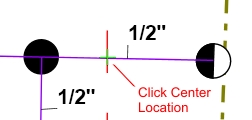
Click center location of intended pipe hop arc.
-
Move the mouse cursor up, down, right or left. The arc making the hop will "flip" on the screen based on the cursor location.
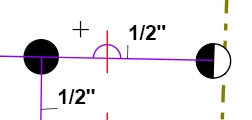
Move cursor to see the arc symbol.
-
Click one time with the left mouse button to complete the process and place the pipe hop on the screen.
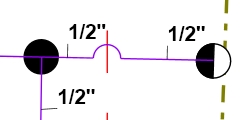
Click one time to complete the pipe hop arc symbol.
-
Continue placing pipe hop symbols on the design screen as necessary.
-
Press the Esc key to exit the command.
Note:
-
You can override the pipe size label location on the design screen using the Properties command. Select a piece of pipe and click on the Override Label Point checkbox. The pipe size label will attach to the mouse cursor. You can then place the label in a new location by clicking on the design screen with the left mouse button. To return the label to its original position, un-check the Override Label Point checkbox.
-
To remove a label from the design screen, erase the text to the right of the Label location in the Properties command.
Back to All Topics