Offset
Offset
Offset
|
Menu:
|
Edit  Offset Offset
|
|
Shortcut Keys:
|
|
|
Toolbar Icon:
|

|
The Offset command will offset an object to create a new object whose shape parallels the shape of the original object. The tool is useful in creating objects such as sidewalks.
To offset an object:
-
Click on the entity to offset.
-
Move the cursor to a new location. Click one time with the left mouse button to set the offset location.
|
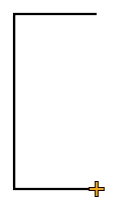
|
|
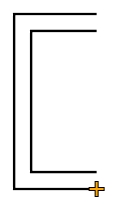
|
|
Line Segment
|
|
Line Segment with Offset
|
To offset a sidewalk line at a known distance:
-
Using the Line command or Curve command, draw one side of a sidewalk.
-
If the Anchor Point does not already reside on the sidewalk entity, press the A key on the keyboard and click on the sidewalk entity to set the new Anchor Point location. In most instances setting the Anchor Point and the end of a line or curve will be the best location.
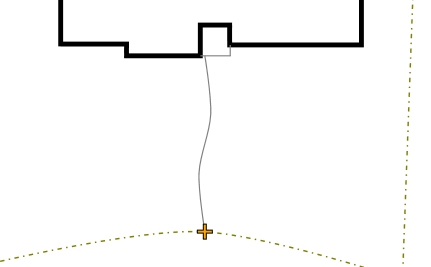
Sidewalk curve with Anchor Point set at the bottom location
-
Select the Offset command from the Edit menu or the quick access toolbar icon.
-
Click anywhere on the entity to offset. An offset copy of the entity will appear on the mouse cursor.
-
Press the ; (semicolon) shortcut key or one of the Arrow Keys to enact the Point Polar command.
-
Enter the desired angle in the A text box and press the Enter key or click on a directional arrow to select an angle. If you enact the program by pressing an Arrow Key, the angle will already be established in the command. For example, the right arrow key will enter an angle of 0� while the up arrow key will enter an angle of 90�. In this example you would press the right arrow key to set an angle of 0�.
-
Enter the distance away from the insertion point and press Enter to complete the command. In this example you would enter a distance of 4 feet.
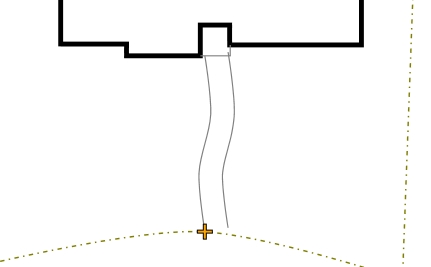
Sidewalk curve with offset set four feet to the right
-
Depending on the original entity, you may need to adjust the offset to complete the process. In this example the top of the offset entity overlaps the front patio. Select the offset entity by clicking on the entity one time with the left mouse button. The entity will change color and its grip locations will be highlighted with small square  boxes.
-
Place the mouse cursor over an end grip location. Press and hold down the left mouse button and drag the grip to a new location. Click one time with the left mouse button to complete the move.
Note:
-
The Point Polar or Point Relative commands in conjunction with the Anchor Point command make offsetting an entity more precise.
-
An offset entity will retain the same properties as the original entity including the layer assignment, color, line style, scale and width.
Back to All Topics