Mirror
Mirror
Mirror
|
Menu:
|
Edit  Mirror Mirror
|
|
Shortcut Keys:
|
|
|
Toolbar Icon:
|

|
The Mirror command will allow you to flip the selected objects along an imaginary mirror line or axis determined by setting two points on the design screen. The command will create a symmetrical mirror image of the selected objects. Not all objects will mirror such as text or images. The command is useful in speeding up the design process because you can draw half of an object and then quickly mirror the second half to create the entire object.
To mirror the selected objects:
-
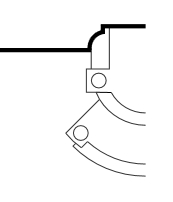
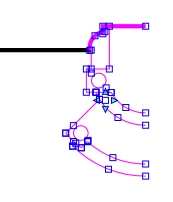
Select one or more objects to mirror.
|
|
|
|
|
Objects to mirror
|
|
Select objects
|
-
Click one time with the left mouse button to set a point for one end of the imaginary mirror line or axis. The Anchor Point will be set at the point location.
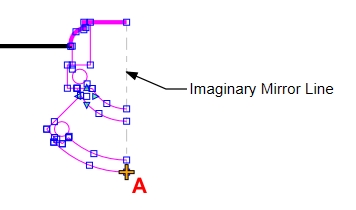
First point set at location A
-
Move the cursor to a new location. The angle and distance from the Anchor Point will be shown in the Status Bar at the bottom of the screen. Click one time with the left mouse button to set the second point for the mirror line.
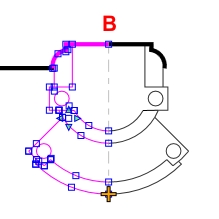
Second point set at location B and mirrored objects
-
Press the Esc key on the keyboard to unselect the original objects and complete the mirror process.
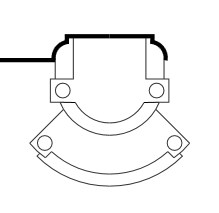
Completed mirror process
Note:
-
The distance between the mirrored objects is determined by the points set for the imaginary mirror line or axis.
-
The angle of the mirrored objects is determined by the points set for the imaginary mirror line or axis. You can make use of the Point Polar or Point Relative commands to be more accurate in placing the two points for the imaginary mirror line or axis. You can make use of the Line command to draw a temporary line and snap to each endpoint when setting the two imaginary point locations. You can then select and erase the temporary line.
-
Not all objects will mirror such as text or images.
Back to All Topics