Linear Drains
Linear Drains
Linear Drains
Menu: |
Drainage
 Linear Drains Linear Drains |
Toolbar Icon: |

|
The Linear Drains
command allows you to draw lines representing linear drains such
as channel drains on the drawing screen.
To draw linear drains on the design screen:
Click on the Manufacturer
drop down menu and select the manufacturer of your choice. You
can add, delete or rename the
manufacturers.
The drain selections associated with the chosen manufacturer
will be displayed under the Drain
Selection header. Click on the desired drain selection
one time with the left mouse button. You can add,
delete or rename the drain selections.
To assign a to the drain, click
on the Color button. Click
on the color of your choice or enter the Red, Green, and Blue values
in the associated text boxes. Click on the OK
button to accept the color assignment.
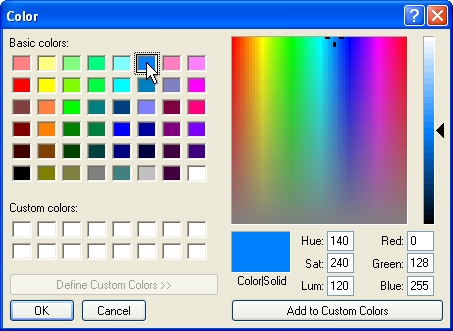
Select a color assignment and click on the OK button.
To begin drawing pipe on the design, click on the
Draw Drain button.
Set two or more points to draw a piece of linear drain.
You may press the Esc
key to "backup" and remove points set while drawing the
drain. Press the Enter
key to end a piece of linear drain. Continue placing additional
linear drain as necessary.
Press the Esc
key to end the command and return to the Linear
Drains dialog box.
Click on the Close
button to exit the dialog box.
Note:
Back to All Topics