Line
Line
Line
|
Menu:
|
Draw  Line Line
|
|
Shortcut Key:
|
L
|
|
Toolbar Icon:
|

|
The Line command will allow you to draw a line made up of two or more points on the design screen. Before drawing a line, make sure you have chosen the correct layer assignment.
To draw a line:
-
Click one time with the left mouse button to set a point for the beginning of a line. The Anchor Point will be set at the beginning point location.
-
Move the cursor to a new location. The angle and distance from the Anchor Point will be shown in the Status Bar at the bottom of the screen. Click one time with the left mouse button to set a second point.
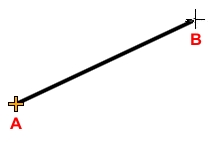
Start point A and endpoint B.
-
Continue the process by setting additional point locations as necessary.
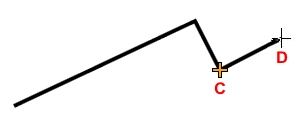
Continue drawing a line with points C and D.
-
Press the Enter key to end the line.
Note:
-
You can press the Esc key to back up and remove points set for the line.
-
If the Polar Angle is turned on, the line will "snap" to preset angles based on the Polar Angle setting.
-
The Anchor Point  will move to the location of the last point set on the screen. The distance and angle from the Anchor Point location is shown in the Status Bar at the bottom of the screen.
-
You can adjust the size of the Anchor Point from the Anchor Point Size drop down menu in the General Options command.
-
The Point Polar or Point Relative commands in conjunction with the Line command make drafting a building an easy process.
-
You can add, delete or move points or grip locations on a selected line.
Back to All Topics