Filters
Filters
Filters
|
Menu:
|
Irrigation  Filters Filters
|
|
Toolbar Icon:
|

|
The Filters command allows you to place irrigation filter or Y-strainer symbols on the drawing screen. You may place as many filters on the drawing screen as necessary. The filters will be counted in the material takeoff.
To place a filter on the design:
-
Click on the Manufacturer drop down menu and select the manufacturer of your choice.
-
The filter selections associated with the chosen manufacturer will be displayed under the Filter Selection header. Click on the desired filters selection one time with the left mouse button.
-
Before a filter may be placed on the design, a symbol must be assigned to represent the equipment. Click on the drop down arrow to the right of the Symbol label to view the available symbol choices. Click one time on the symbol to assign to the selected filter.
-
To assign a to the symbol, click on the Color button. Click on the color of your choice or enter the Red, Green, and Blue values in the associated text boxes. Click on the OK button to accept the color assignment.
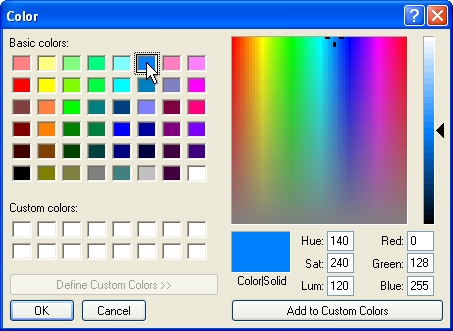
Select a color assignment and click on the OK button.
-
Click on the OK button to begin placing the symbol on the drawing screen.
-
The symbol will appear on the mouse cursor. Drag the symbol to the desired location on the drawing screen and click one time with the left mouse button.
-
Rotate the symbol to the desired angle and click a second time to complete the placement process.
-
Another filter symbol of the same type will appear on the mouse cursor. Continue placing additional filter symbols as necessary.
-
Press the Esc key to end the command and return to the Filters dialog box.
-
Click on the Close button to exit the dialog box.
Note:
-
Set the cost associated with each piece of equipment, the part number and the tied assembly assignment in the Equipment Costs command.
-
Expand or contract sections as required.
Back to All Topics