Combine Plant Symbols
Combine Plant Symbols
Combine Plant Symbols
|
Menu:
|
Landscape  Combine Plant Symbols Combine Plant Symbols
|
|
Toolbar Icon:
|

|
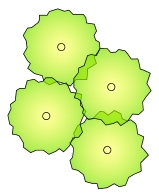
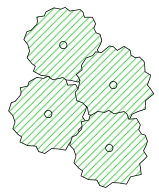
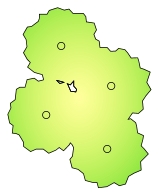
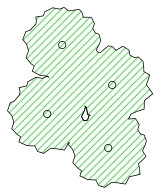
When placing plant symbols on a design, there may be times when plant symbols overlap each other. Many designers like the symbols to be trimmed at their intersections. The Combine Plant Symbols command will trim plant symbols at their intersection locations creating one continuous plant symbol. Each individual plant will still be counted in the Material List / Estimate report and the Quantity Label.
To combine two or more plant symbols:
-
Select the plant symbols to combine on the drawing screen.
-
Click on the Combine Plant Symbols command from the Landscape menu or the Toolbar icons.
Note:
-
Plants of different types or different sizes cannot be combined even if they overlap one another.
-
If you select plant symbols with different fill types, the combined plant symbols will take on the fill type of the first plant symbol selected.
-
The fill type for the combined plant symbols will apply to all symbols and not remain as separate patterns for each individual symbol. The fill pattern is determined by the first plant selected during the command.
|
|
|
|
|
Plant Symbols with Gradient Fill
Before Combine Plants Command
|
|
Plant Symbols with Hatch Fill
Before Combine Plants Command
|
|
|
|
|
|
Plant Symbols with Gradient Fill
After Combine Plants Command
|
|
Plant Symbols with Hatch Fill
After Combine Plants Command
|
Back to All Topics