Circle
Circle
Circle
|
Menu:
|
Draw  Circle Circle
|
|
Shortcut Keys:
|
|
|
Toolbar Icon:
|

|
The Circle command will allow you to draw a circle or ellipse on the design screen. Before drawing a circle or ellipse, make sure you have chosen the correct layer assignment.
To draw a circle or ellipse:
-
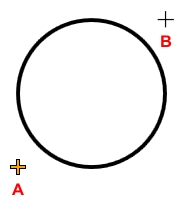
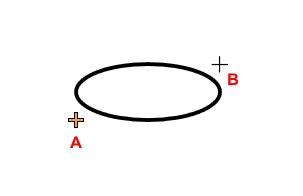
Click one time with the left mouse button to begin the circle or ellipse. Holding down the Shift key will draw a circle while releasing the key will draw an ellipse. The Anchor Point will be set at this location.
-
Move the cursor to a new location. The angle and distance from the Anchor Point will be shown in the Status Bar at the bottom of the screen.
|
|
|
|
|
Starting point A and ending point B.
|
|
Starting point A and ending point B.
|
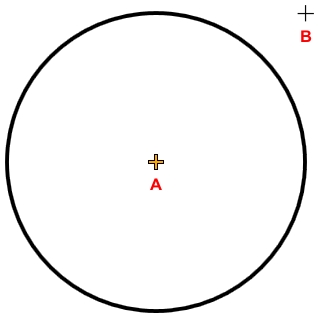
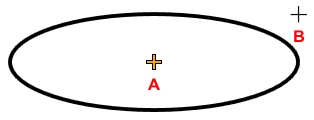
If you press and hold down the Ctrl key while drawing a circle or ellipse, the Anchor Point will become the center of the object.
|
|
|
|
|
Starting point A and ending point B.
|
|
Starting point A and ending point B.
|
-
Click to set the second and final point for the circle or ellipse.
Note:
Back to All Topics