Chamfer
Chamfer
Chamfer
Menu: |
Edit
 Chamfer Chamfer |
Shortcut
Keys: |
|
Toolbar Icon: |

|
The Chamfer command will cut
off a segment of a corner and replace the corner with a straight line.
The line segments creating the corner must intersect each other or the
command will not function. This command will not chamfer curve or
arcs, only line segments. The corner may be a single line made up
of three points or more.
To chamfer
a corner:
Select the method to use when chamfering the corner
by clicking on the Type button.
 |
Set the distance of the
chamfer line. |
 |
Set the depth of the chamfer
line. |
Enter the distance in the Distance
text box.
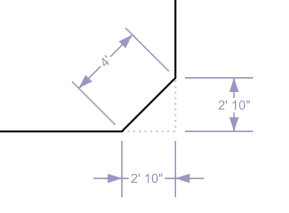
Distance selected as the chamfer
Type with a Distance entered of 4
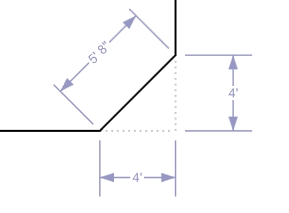
Depth selected as the chamfer Type
with a Distance entered of 4
Click on the OK
button.
Click on the first line segment to chamfer.
Click on the second line segment to chamfer.
The chamfered line will take on the characteristics of the first line
segment selected in the process.
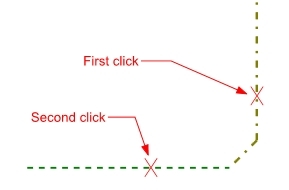
Chamfered line with the default Property
Line style and color
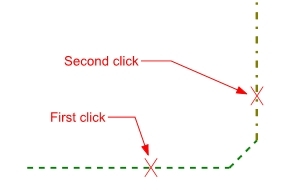
Chamfered line with the default Bedlines
style and color
Press the Esc
key to end the command.
Note:
The Chamfer command
will not work on curves, circle or arc segments.
If the corner is drawn with a continuous line with
a point at the corner, or if the endpoints of two lines end at the
same intersection point, right mouse click on the point location to
chamfer the corner.
Back to All Topics