Boundary
Boundary
Boundary
Menu: |
Draw  Boundary
 |
Shortcut
Keys: |
|
Toolbar Icon: |

|
The Boundary command will allow
you to create a continuous boundary line outlining the perimeter of an
enclosed area. You can create a boundary line by setting a point
within a closed area, or by selecting the lines, curves, circles, or arcs
that make up the area.
To create a boundary by setting a point:
Using the Layer Manager,
switch to the layer on which the new boundary line will be created.
Click one time with the left mouse button inside
of an area totally enclosed by lines, curves, circles, or arcs.
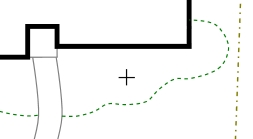
|
Click inside of enclosed area. |
The new boundary line will be created and available
for selection.
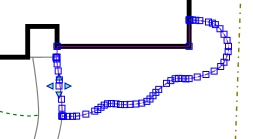
|
Selected new boundary line. |
To create a boundary by selecting entities:
Using the Layer Manager,
switch to the layer on which the new boundary line will be created.
Select the lines,
curves, circles, or arcs that totally enclose an area.
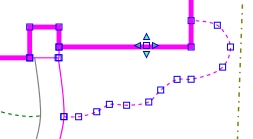
|
Selected entities enclosing an area. |
The new boundary line will be created and available
for selection.
|
Selected new boundary line. |
If there is more than one enclosed area:
A message will appear indicating that more than one
enclosed area is detected.
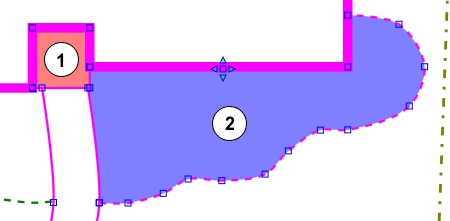
|
When selecting entities, two areas
exist for creating a boundary. |
Click one time with the left mouse button inside
of the area to enclose with a boundary line.
The new boundary line will be created and available
for selection.
Note:
The command will ignore miscellaneous symbols, landscape
symbols, and irrigation symbols such as sprinklers, valves, and pipe.
Make use of the Fill command
to fill a boundary with a color or hatch pattern.
Back to All Topics