Auto Symbol Label
Auto Symbol Label
Auto Symbol Label
|
Menu:
|
Tools Auto Symbol Label Auto Symbol Label
|
The Auto Symbol Label command allows you to automatically place labels for the selected equipment or plant material, for a selected category, or for all symbols on the design at one time. You may select the desired position for the labels to appear in relation to the symbols, as well as the specified offset or distance the labels will appear from the symbols.
To automatically place symbol labels for equipment or plant material on the design screen:
-
Click on the Symbol Selection drop down menu and select the option of your choice. This setting works together with the Category Filter to determine which symbols will be labeled on the design screen.
The Selected Symbols option will label only the symbols that have been manually selected on the design screen that are within the selected categories. The All Drawing Symbols option will label all of the symbols on the drawing that are within the selected categories.
-
In the Category Filter location, click on each category to label one time with the left mouse button until a checkmark appears in the box. Categories that have not been selected will not be labeled. For example, in the illustration below, all sprinklers and control valves will be labeled automatically while the remaining irrigation, landscape, lighting, and drainage equipment will not.
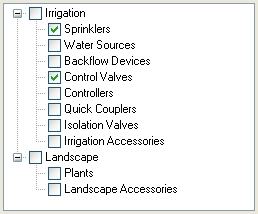
Sprinklers and Control Valves Checked to Label
-
Select an option from the Description Type drop down menu.
The Use Description option will place the description for the chosen symbols based on the description as shown in the Equipment Costs database. For example, the default description for a Hunter 10 foot full circle turf spray nozzle is PS 10-360. If the Use Description option is selected, the Use Full Description check box will be available. If this feature is enabled, the label for sprinkler symbols will be followed by the body assignment. For example, the label for a Rain Bird 15 foot full circle shrub spray nozzle assigned to an 1812 body would appear as 15F 1812. Plant labels will show the common name, botanical name, or abbreviation as entered in the Plant Material command and selected in the Landscape Options command, followed by the plant size.
The Use Symbol Label option will place the text as entered in the Symbol Label field in the Equipment Costs database. For example, you may set the label for a Toro 2001-24 turf rotor to 24.
The Custom Label selection will allow you to enter a description for the selected symbols. If this option is selected, you may enter the description for the label in the Description text box. This feature may be used to place a generic label for the selected symbols such as Control Valve, Quick Coupler, Existing Tree or Small Shrub.
-
In the Label Offset text box, type in the desired number of units to place the labels in relationship to the associated symbol. An offset will prevent the labels from being drawn directly on top of the associated symbol which will give the drawing more clarity. The offset is based on the insertion point of the symbol. If a plant has a radius of 10 units, an offset of 2 will place the label inside of the plant symbol. An offset of 12 will place the symbol just outside of the plant symbol.
-
In the Label Angle text box, enter a value for the desired position of the label in relation to the symbol. An angle of 0 will place the label to the right of the symbol while an angle of 180 will place the label to the left of the symbol. An angle of 90 will place the label above the symbol while 270 will place the label below the symbol.
-
In the Font Settings area, adjust any of the font settings as necessary.
-
Once the settings are made, click on the Place Symbol Labels button to label the chosen symbols on the design screen.
Note:
-
All labels are drawn on the Symbol Labels layer. You can set the color for the labels by adjusting the Color assignment for the Symbol Labels layer in the Layer Manager.
-
To remove all of the labels from the design screen, make Symbol Labels the current layer in the Layer Manager. Click on the Delete Layer button to remove the labels from the design.
-
You assign a Symbol Label to each piece of equipment in the Equipment Costs database.
Back to All Topics