Add or Remove Points
Add or Remove Points
Add, Move or Delete Points or Grip Locations
The Add or
Remove features will allow you to add or remove points or grip
locations to or from a line, curve or leader. You can then move
or reposition the points to change the shape of the selected entity.
To add a
point or grip location:
Select a line, curve or leader on the design screen.
The entity will change color and its grip locations will be
highlighted with small square  boxes.
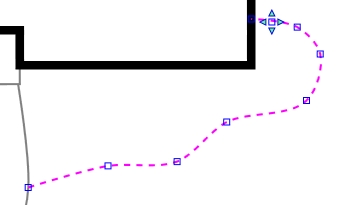
Selected curve with grip locations
highlighted.
Press the plus sign (+) key to change to the add point
cursor  .
.
Click on the line, curve or leader one time with the
left mouse button to add a new point or grip location.
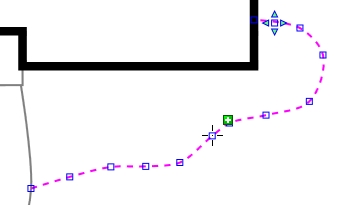
Selected curve with new points or
grip locations added.
Press the Esc
key to exit the add point cursor mode and return to the selection
cursor  .
.
To move a point or grip location:
Select a line, curve or leader on the design screen.
The entity will change color and its grip locations will be
highlighted with small square boxes.
To move a grip location, click on a grip location
one time with the left mouse button.
Move the cursor to a new position on the design screen.
Click a second time with the left mouse button.
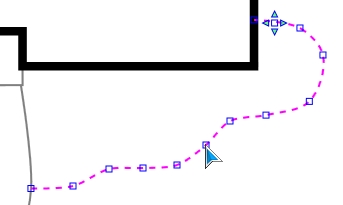
Selected curve with repositioned
grip locations
To remove or delete a point or grip location:
Select a line, curve or leader on the design screen.
The entity will change color and its grip locations will be
highlighted with small square boxes.
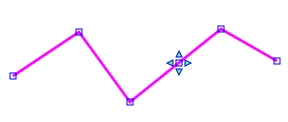
Selected line with grip locations
highlighted.
Press the minus sign (-) key to change to the remove
point cursor  .
.
Place the cursor over an existing grip location.
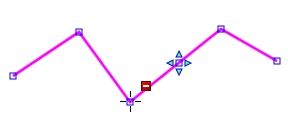
Cursor over point or grip location
to remove.
Click one time with the left mouse button to remove
or delete the point or grip location from the entity.
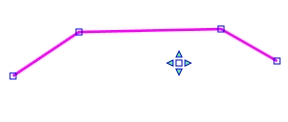
Line with point or grip location
removed.
Press the Esc
key to exit the add point cursor mode and return to the selection
cursor .
Back to All Topics