Pro Contractor Studio Knowledge Base
Symbol Legend
|
Menu: |
Tools |
|
Toolbar Icon: |
|
 Symbol Legend
The Symbol Legend command will create a legend of the equipment and materials that exist on the current design.
To create a legend and place it on the design screen:
-
Select each category of equipment or material in the Legend Type area under General Settings. Click on each equipment or material category selection with the left mouse button until a checkmark appears in the box. A category that has not been selected will not be displayed in the legend.
-
Enter an angle for the rotation of the legend in the Rotation text box.
-
To display the quantity of each item found on the design, click on the Show Quantity checkbox until a checkmark appears in the box. If you do not want to display the quantity of all items, click on the checkbox until the checkmark is removed.
-
To display the part number for each item found on the design, click on the Show Part Number checkbox until a checkmark appears in the box. If you do not want to display the part numbers, click on the checkbox until the checkmark is removed.
-
In the Grid Settings location, turn the grid lines separating the column and rows in the legend On or Off by selecting the desired preference in the Grid Visibility drop down menu.
-
Assign a color to the grid lines by clicking on the Grid Color button. Click on the OK button to accept the color assignment.
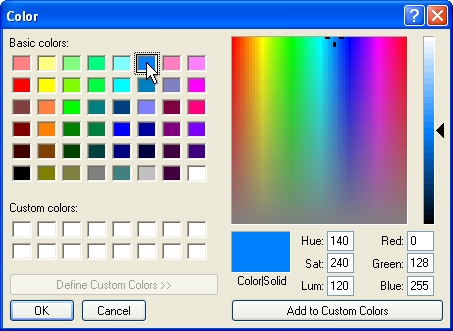
Select a color assignment and click on the OK button. -
In the Text Settings location, select to display the Common Name, Botanical Name, Common Name/Botanical Name, or Botanical Name/Common Name from the Plant Name Type drop down menu by clicking on the selection one time with the left mouse button.
-
select the font style for the legend by clicking on the Font drop down menu and clicking on the desired selection one time with the left mouse button.
-
Enter the height of the font in the Font Size text box. The size is related to the units of measurement setting. For example, a setting of 10 will equate to 10 feet or 10 meters depending on the units of measurement setting.
-
To assign a color to the font, click on the Text Color button. Click on the color of your choice or enter the Red, Green, and Blue values in the associated text boxes.
-
In the Column Header Style Settings location, assign a background color to the header rows by clicking on the Back Color button.
-
Assign a color to the header text by clicking on the Text Color button.
-
In the Landscape Settings area, select Relative to Drawing for the plant symbols to appear in the legend the same size as they are on the design screen. Select Absolute Size and enter a radius for the plant symbols in the Symbol Size text box.
-
To display the abbreviation assigned to each plant found on the design, click on the Show Plant Abbreviation checkbox until a checkmark appears in the box. If you do not want to display the abbreviations, click on the checkbox until the checkmark is removed. Abbreviations may be assigned to each plant in the Plant Placement command in the Abbreviation text box.
-
Once you have adjusted any necessary settings, you may place the legend on the current design screen or you may create a new page and place the legend on a separate sheet. To place a legend on the design screen, click on the Place button. Set a point on the screen for the top left corner of the legend.
-
Click on the Delete button to remove the legend from the design screen. This will remove any entities drawn on the Legend layer on the current sheet of paper.
-
Click on the Close button to exit the dialog box.
Note:
-
The legend is created on a Legend layer. To move the legend, use the Layer Manager to select the Legend layer and then use the Move command from the Edit menu.
-
To update the legend, click on the Delete button to erase the existing legend and click on the Place button to insert a new legend.