Pro Contractor Studio Knowledge Base
Fixture Selection and Settings
Menu: |
Lighting
|
Toolbar Icon: |
|
 Fixtures
Before you can place a fixture symbol on the design screen, you may need to add the desired fixture to the database. You must then select the fixture from the database and assign a symbol to represent the fixture on the design screen. You may then place as many fixtures on the design as necessary.
Adding a fixture to the database:
Select a Manufacturer from the drop down menu. You can add, delete or rename the manufacturer selections. Deleting a Manufacturer will delete all fixture categories, all fixtures, and all lamps assigned to the manufacturer in the database. You cannot undo a deletion. Once a Manufacturer is deleted, the data will be lost and you will have re-enter the data into the database to restore the information.
Click on the Fixtures tab.
Select the fixture Category from the drop down menu. You can add, delete or rename the category selections. Deleting a fixture Category will delete all lighting fixtures within the category. You cannot undo a deletion. Once a Category is deleted, the data will be lost and you will have re-enter the data into the database to restore the information.
Add a fixture to the list by clicking on the Add button or
 icon in the Fixtures header.
A New Fixture will appear in the list. Enter a base Part
Number and Description
for the new lighting fixture by clicking one time in each area with
the left mouse button.
icon in the Fixtures header.
A New Fixture will appear in the list. Enter a base Part
Number and Description
for the new lighting fixture by clicking one time in each area with
the left mouse button.
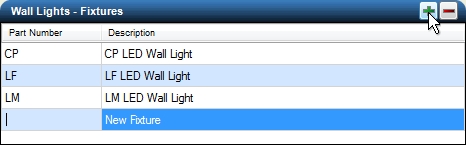
New Fixture added to the list of existing fixtures.- Add each individual fixture configuration by clicking
on the Add button or icon in the Fixture
Configurations header. Each new fixture configuration will
automatically include the base part number of the fixture and the
description of the fixture. The new configuration will inherit the
number of lamps and whether or not the lamp is included with the fixture
from the previous entry.
Enter the full Part Number by clicking one time in the area with the left mouse button and typing the complete part number.
Modify the Description as necessary.
Enter the number of lamps included with the fixture configuration in the # Lamps text box.
If the lamp(s) are included with the fixture configuration, click on Lamp Included with the left mouse button until a checkmark appears in the box.
Click on the Lamp drop down menu and click on the desired lamp selection one time with the left mouse button to assign the lamp to the fixture configuration.
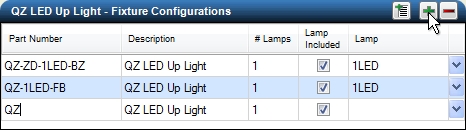
New fixture configuration added to the list.
Add multiple fixture configurations at one time by clicking on the Add List button or
 icon in the Fixture Configurations
header. Type one or more fixture configurations in the Add Configurations List dialog box
or copy and paste the list from another application such as Microsoft� Word or Excel. Press
the Enter key after each new
configuration to start a new line with a new configuration.
icon in the Fixture Configurations
header. Type one or more fixture configurations in the Add Configurations List dialog box
or copy and paste the list from another application such as Microsoft� Word or Excel. Press
the Enter key after each new
configuration to start a new line with a new configuration.
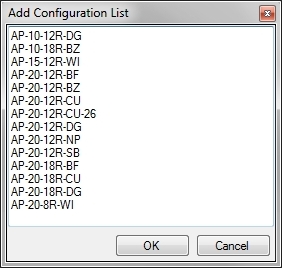
Multiple configurations to add to the list
Click on the OK button to insert the configuration list into the database. Each new fixture configuration will automatically include the base description of the fixture. The new configurations will inherit the number of lamps and whether or not the lamp is included with the fixture from the previous entry.
Modify the Description as necessary.
Click on the Lamp drop down menu and click on the desired lamp selection one time with the left mouse button to assign the lamp to each new fixture configuration.You may delete a fixture configuration of an entire category of fixtures by clicking on the Delete button or
 icon. Answer
Yes to the resulting prompt
to delete the information from the database, or No
to exit without deleting the information. You
cannot undo a deletion. Once an item is deleted, the data will
be lost and you will have re-enter the data into the database to restore
the information.
icon. Answer
Yes to the resulting prompt
to delete the information from the database, or No
to exit without deleting the information. You
cannot undo a deletion. Once an item is deleted, the data will
be lost and you will have re-enter the data into the database to restore
the information.
To select a fixture and adjust any settings:
Select a Manufacturer from the drop down menu. You can add, delete or rename the manufacturer selections.
Click on the Fixtures tab.
Select the fixture Category from the drop down menu. You can add, delete or rename the category selections.
Select a fixture type in the Fixtures list. The fixture selections will be sorted alphabetically.
Select a Fixture Configuration from the list.
If necessary, make adjustments to the fixture configuration in the associated text boxes and drop down menus.
Before a fixture may be placed on a design, you must assign a symbol to represent the fixture on the design screen. Click on the drop down arrow to the right of the Symbol label to view the available choices. Click one time on the symbol to assign to the selected fixture.
To assign a color to the symbol, click on the Symbol Color button. Click on the color of your choice or enter the Red, Green, and Blue values in the associated text boxes. Click on the OK button to accept the color assignment.
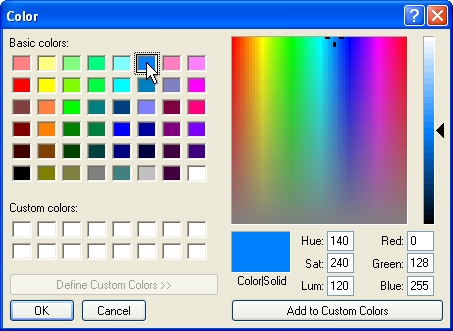
Select a color assignment and click on the OK button.Click on the OK button to begin placing the lighting fixture on the design screen.
Note:
Deleting a Manufacturer will delete all fixture categories, all fixtures, and all lamps assigned to the manufacturer in the database. You cannot undo a deletion. Once a Manufacturer is deleted, the data will be lost and you will have re-enter the data into the database to restore the information.
Deleting a fixture Category will delete all lighting fixtures within the category. You cannot undo a deletion. Once a Category is deleted, the data will be lost and you will have re-enter the data into the database to restore the information.
Set the cost associated with each fixture and the tied assembly assignment in the Equipment Costs command.
Wattage and voltage may be associated with a lamp on the Lamps tab.
Expand or contract sections as required.